


FAQ
The pop-up blocker appears when I reserve or copy materials or apply for an inter-library loan.
Depending on the settings of your browser, an action such as reserving or copying materials or applying for an inter-library loan (ILL) will trigger the pop-up blocker, which will prevent you from proceeding any further.
- Temporarily allowing the pop-up blocker
Click [Allow once] on the pop-up blocker notification bar.
(Depending on the browser version, select "Temporarily Allow Pop-ups.")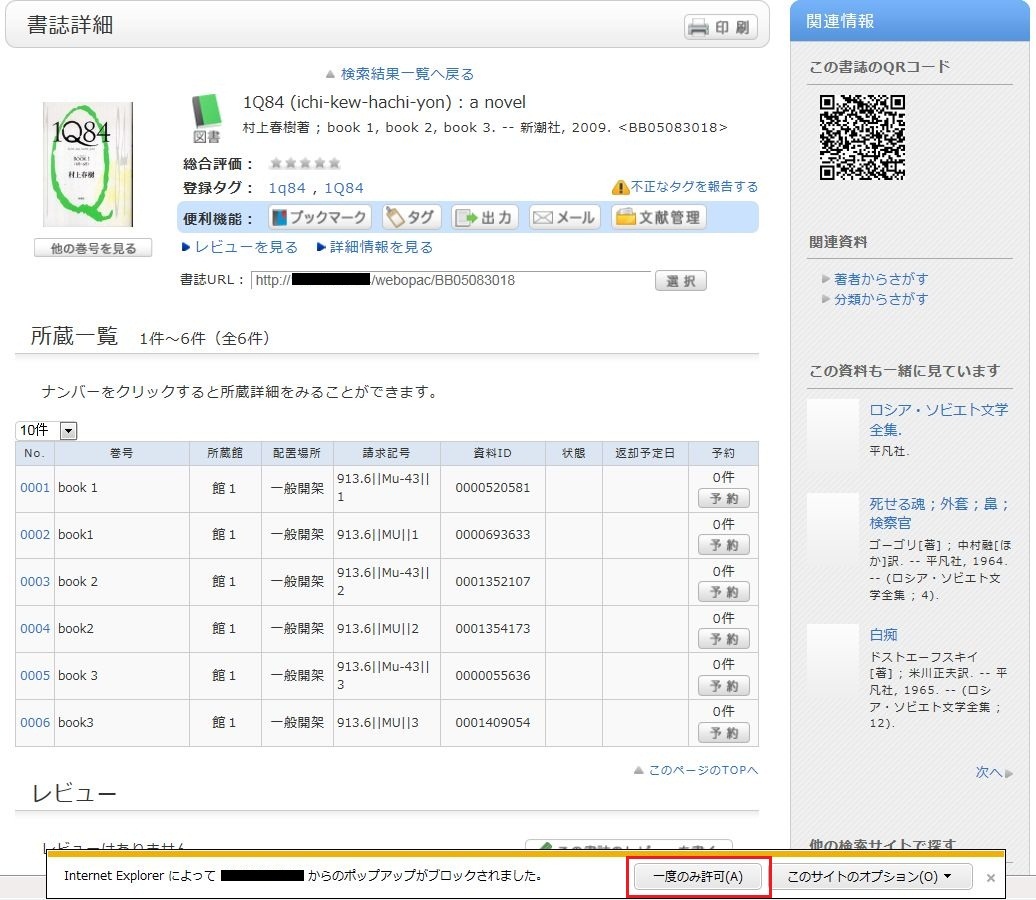
* However, with this method, if the browser is closed once, the pop-up blocker is enabled when the browser is started again. Consequently, the same work will need to be repeated to apply for a reservation or ILL in OPAC.
- Always allowing the pop-up blocker
Click "Always allow" from [Options for this site] on the pop-up blocker notification bar.
(Depending on the browser version, click the notification bar, and select "Always Allow Pop-ups from This Site.")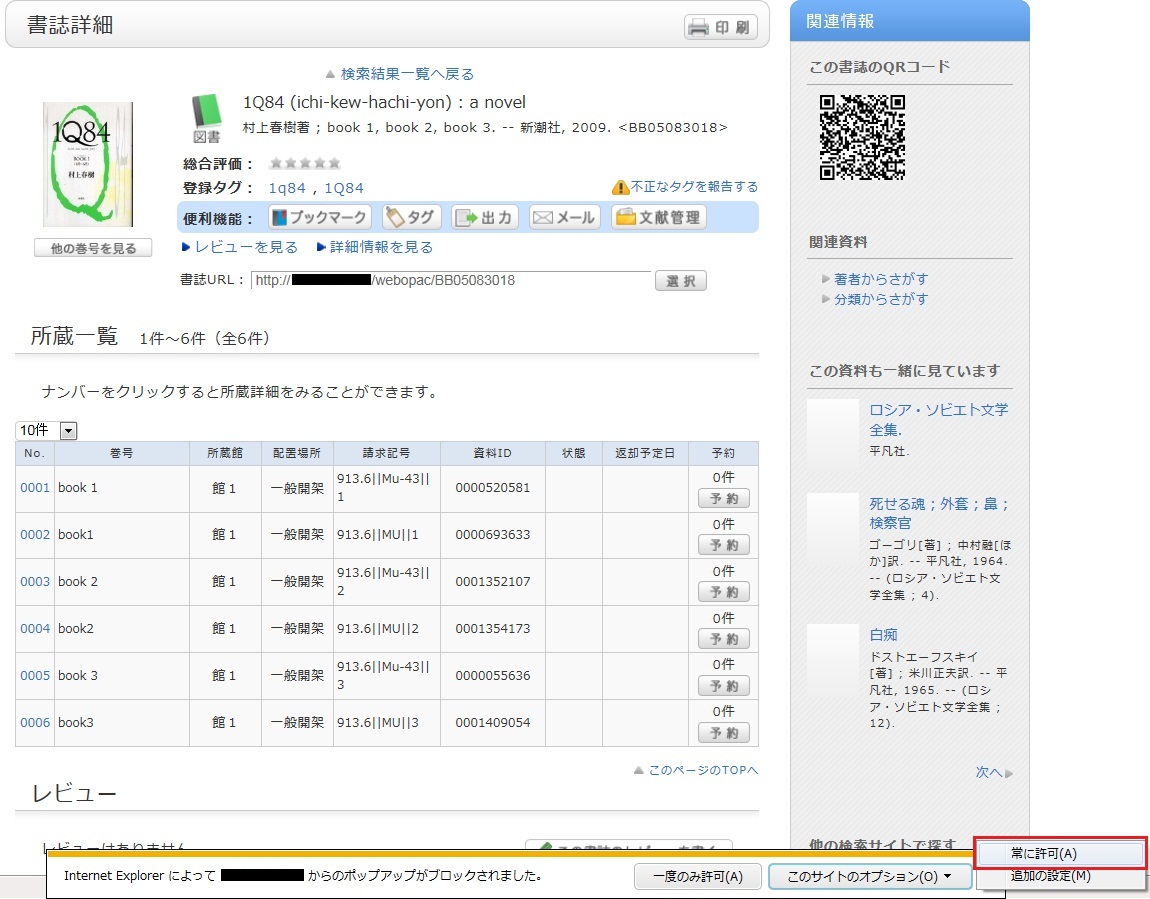
* Even with the pop-up blocker enabled, some notification bars may not appear. In such cases, select [Tools] -> [Pop-up Blocker] -> [Pop-up Blocker Settings] from the browser menu. Then, enter the website address to be unblocked in "Address of website to allow," and click [Add]. Click [Close] to exit the screen.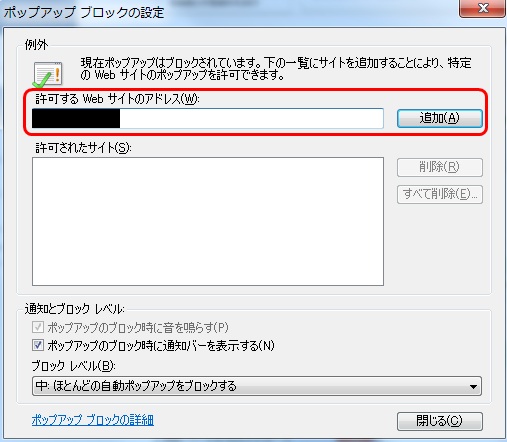
* Safari users are requested to go to Security in the browser settings menu to confirm that no check mark is entered in the "Block Pop-up Windows" check box.
* If you are a Google Chrome user, click here.
After enabling pop-ups as described above, repeat the procedure for your application from the beginning.