



FAQ
FAQ(English)
What do I do when I don't find the materials I'm looking for on the OPAC? (Part 2)
You can search for and obtain materials from the search screen by following the procedure below.
1. Search the holdings of other university libraries and the National Diet Library, and apply to get the book or a copy (ILL copy request and ILL borrowing request) from the library.
→ Perform the search from the [Other Univ.] tab or the [Cross Search] tab.
2. Search the holdings of your neighborhood public library and university libraries, and visit the library directly.
→ Perform the search from the [Cross Search] tab by selecting a neighborhood public library, university library, etc.
3. Perform a search from a bookstore, etc., and consider purchasing the materials there.
4. Search the holdings of libraries outside Japan, and get the materials from the relevant library.
* Getting a book or inter-library loan from a library or other such other organization outside Japan takes a significantly long time. Due to a variety of reasons, it may also be impossible to get materials from libraries outside Japan. For details, consult the library staff.
What are the reviews displayed on the review list screen?
On the Review List screen, you can check a list of bibliographies that have reviews.
What are the tags displayed on the tag search screen?
On the tag search screen, you can search by tag and view a list of materials tagged with that tag.
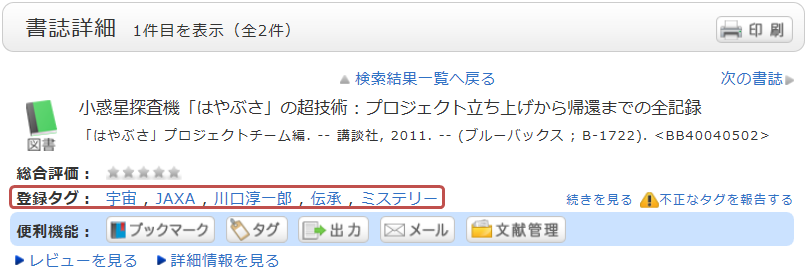
What should I do if I want to search reviews and tags?
You can search the title or full text of reviews and tags in any of the following five ways.
- See "New Tags" and "New Reviews" on the top page.
- Select "Review List" or "Search Tags" under the search bar on the OPAC tab.
- In [Basic Search], enter a check mark for "Contains review and tag."
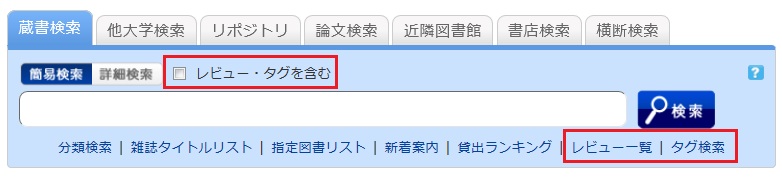
- In [Advanced Search] on the [Bib Search] tab, select "Review" or "Tag" from the pull-down menu and search the materials.
(In contrast to the basic search, you can perform a search with multiple conditions.)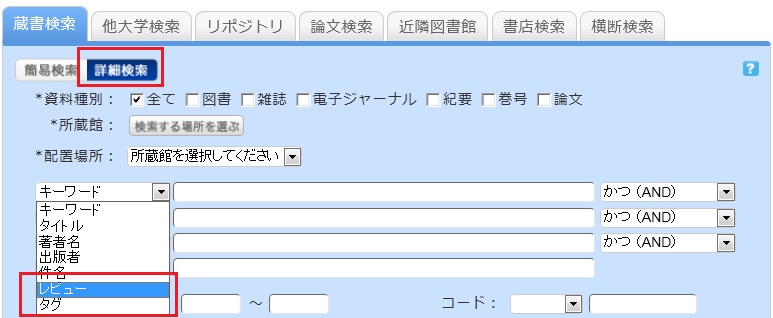
- Select "Review List" or "Search Tags" from the catalog search menu.
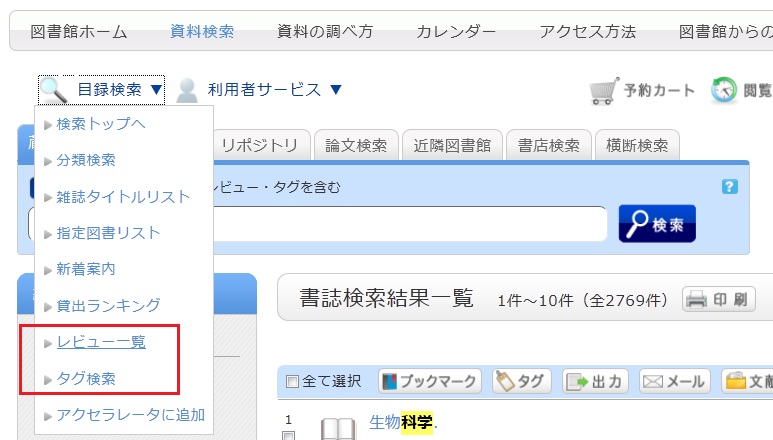
How do I return to the original search result list after a refined search from the left menu on the search result list display screen?
The following screen appears when you have entered a keyword and performed a refined search from the left menu on the Bib Search result list screen.
In the example, the material type is limited to "books." 
Cancel the search conditions for this holding library. Then, to return to the original search result list, click the red x button in the blank area under "Selecting conditions."
Even if you have performed multiple refined searches, you can cancel any narrow-down search condition by using the above method, regardless of the order of the searches.